


Introduction
AirPods have revolutionized the wireless audio experience with their compact design, smart features, and seamless integration, especially with Apple’s ecosystem. However, what many users don’t realize is that AirPods also work exceptionally well with laptops, including those running Windows. If you’ve ever wondered, “How Do I Connect My AirPods to My Laptop?”, the answer is simpler than you might think.
Whether you’re connecting them to a MacBook for a FaceTime call or to a Windows laptop for a Zoom meeting, AirPods can deliver high-quality sound with minimal setup. The key lies in your device’s Bluetooth functionality and a basic understanding of pairing steps. With just a few clicks, such as turning on Bluetooth, putting your AirPods in pairing mode, and selecting them from your laptop’s available devices, you’ll be wirelessly connected in no time.
Plus, once paired, your AirPods will automatically reconnect to the laptop whenever Bluetooth is on and the earbuds are nearby. This guide will walk you through every step, from preparation to troubleshooting, so you can confidently answer the question, “How Do I Connect My AirPods to My Laptop?” and enjoy a smooth audio experience across your devices.
| Point | Detail |
| Device Support | Works with Windows & Mac laptops |
| Setup Ease | Quick Bluetooth pairing in a few simple steps |
| Main Use | Ideal for calls, music, and video playback |
| Auto-Reconnect | Connects automatically after initial pairing |
How Do I Connect My AirPods to My Laptop?
If you’re wondering, “How do I connect my AirPods to my laptop?” the process is simpler than you might think, whether you’re using a Windows PC or a MacBook. AirPods, although designed by Apple, are compatible with most Bluetooth-enabled laptops. To start, make sure your AirPods are charged and your laptop’s Bluetooth is turned on. If you’re using a Windows laptop, go to the Bluetooth settings by opening the Start Menu, clicking on Settings, then selecting Devices and Bluetooth & other devices.
Toggle Bluetooth on, then put your AirPods into pairing mode by placing them in the case, opening the lid, and holding the button on the back until the LED flashes white. Next, on your laptop, select “Add Bluetooth or other device,” choose Bluetooth, and then select your AirPods from the list. Once connected, a tone will play in your AirPods, confirming the pairing. On a MacBook, the process is even smoother, especially if your AirPods are already connected to your Apple ID.
Simply open the lid of the case near your Mac, and a prompt may appear to connect. If not, go to the Bluetooth section in System Settings, put your AirPods in pairing mode, and select them from the available devices. In both cases, after the initial setup, your AirPods should connect automatically in the future. So, whether you’re using your laptop for meetings, watching videos, or listening to music, the answer to “How do I connect my AirPods to my laptop?” lies in a few easy steps and a reliable Bluetooth connection.
Before You Begin: Things to Know
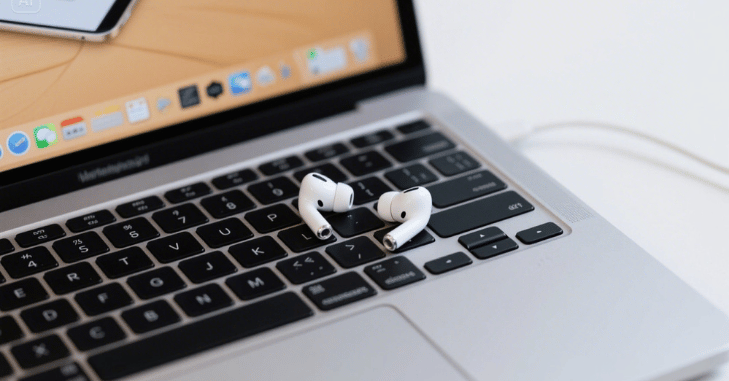
Before diving into the steps to connect your AirPods to a laptop, it’s important to make sure a few basic requirements are met. First, ensure that your AirPods are charged and placed inside their charging case. Next, confirm that your laptop has Bluetooth capability, as this is essential for establishing a wireless connection.
Finally, be aware of your laptop’s operating system, whether it’s Windows 10, Windows 11, or a version of macOS such as Monterey, Ventura, or Sonoma, as the connection process can vary slightly depending on the OS you’re using.
How to Connect AirPods to a Windows Laptop?
| Step | Action | Details |
| Enable Bluetooth | Open Settings > Devices > Bluetooth and other devices | Toggle Bluetooth ON or use Windows A to access Action Center |
| Pairing Mode | Put AirPods in case and open the lid | Press and hold the back button until the white LED starts flashing |
| Connect AirPods | In Bluetooth menu, click Add Bluetooth or other device and select Bluetooth | Choose your AirPods from the list and click Connect |
| Confirmation | Once paired, AirPods play a connection tone and show as Connected | You are now ready to use your AirPods with your Windows laptop |
How to Connect AirPods to a MacBook (macOS)?
Connecting AirPods to a Mac is even more streamlined, especially if you’re logged into the same Apple ID.
Step 1: Enable Bluetooth on Your Mac
- Click the Apple logo at the top-left corner.
- Go to System Settings (or System Preferences, depending on your macOS version).
- Click Bluetooth and ensure it’s turned ON.
Step 2: Pair Your AirPods
If your AirPods were previously paired with your iPhone or iPad using your Apple ID:
- Open the AirPods case lid near your Mac.
- Click Connect when a prompt appears on your Mac screen.
This works because of Apple’s iCloud pairing system, which syncs AirPods across devices using the same Apple ID.
Option 2: Manually Pair Your AirPods
If they are not linked to your Apple ID:
- Open System Settings > Bluetooth.
- Put the AirPods in pairing mode (press and hold the button on the case until a white light flashes).
- In the Bluetooth list on your Mac, click your AirPods, then click Connect.
Switching Between Devices
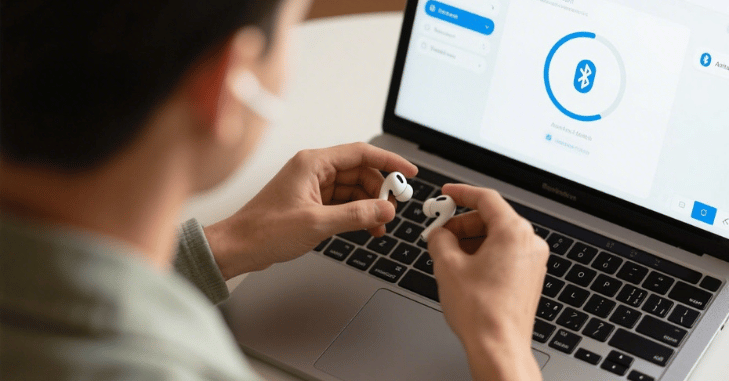
AirPods support automatic device switching between Apple devices such as the iPhone, iPad, and Mac if they are all signed in with the same Apple ID. This seamless transition allows users to move from one Apple device to another without needing to manually reconnect.
However, this feature does not work with Windows PCs. If you’re switching from an iPhone (or any Apple device) to a Windows laptop, you’ll need to take a couple of manual steps. First, turn off Bluetooth on your phone or disconnect the AirPods from it. Then, open the Bluetooth settings on your laptop and reconnect the AirPods manually. This ensures your laptop can detect and pair with the AirPods without interference from the previously connected device.
Bonus Tips for a Smooth AirPods-Laptop Experience
Improve Sound Quality
- On Windows, go to Sound Settings > Output device and select your AirPods.
- Disable “Hands-Free AG Audio” if present (as it often causes poor audio quality).
Use AirPods as a Microphone
You can use the built-in mic on AirPods for Zoom or Teams calls:
- Set your input device to AirPods in your Sound or Audio settings.
Troubleshooting Connection Issues
If your AirPods won’t connect:
- Forget the device and reconnect.
- Restart your laptop.
- Reset your AirPods by holding the case button until the amber light flashes, then white.
How to Disconnect or Remove AirPods
When you’re done using your AirPods with your laptop, it’s a good idea to disconnect or remove them properly to avoid connection issues later. On a Windows laptop, go to Settings, then Bluetooth & devices. From there, locate your AirPods in the list of paired devices, click on them, and select either ‘Remove device’ or ‘Disconnect,’ depending on whether you want to completely unpair them or just temporarily disconnect them.
On a Mac, open the Bluetooth Settings, then click the small “i” icon next to your AirPods’ name. You’ll see the options to Disconnect or Forget This Device; select the one that suits your needs. Disconnecting keeps the AirPods paired for future use, while forgetting the device removes the connection entirely and requires re-pairing the next time.
Conclusion
In summary, learning “How Do I Connect My AirPods to My Laptop?” opens up a world of convenience and flexibility for your audio needs. Whether you’re using Windows or macOS, the connection process is straightforward once you know what to do.
From enabling Bluetooth to entering pairing mode and even switching between devices or troubleshooting issues, every step ensures a smoother, more enjoyable experience. Now that you know how to set up and manage your AirPods on a laptop, you’re ready to enjoy wireless audio with ease and confidence anytime, anywhere.
Want to know about “Mastering the Process of How to Connect AirPods to a Dell Laptop?” Check out our “Tech” category.
FAQs
To pair AirPods, you typically need to open the charging case and press and hold the back setup button until the status light turns white.
To pair earbuds with a laptop, you often need to turn on Bluetooth on both devices, put the earbuds in pairing mode, and then pair them using the laptop’s Bluetooth settings.
Toggle the Bluetooth switch to “On” after selecting Settings > Devices > Bluetooth & other devices on a Windows computer.
AirPods Pro (all models) or AirPods 1, 2, or 3: After placing the AirPods in their case and shutting the lid, wait 30 seconds. Press and hold the setup button on the case’s back for approximately 15 seconds after opening the lid, or until the status light flashes amber and then white.